
Usage Examples
Example workflows and use cases for Protomia Solution 2.
Usage Examples
Protomia enables a wide range of computational chemistry workflows. The following examples walk through common tasks you can accomplish on the Aitomistic Hub.
Supported Calculation Types
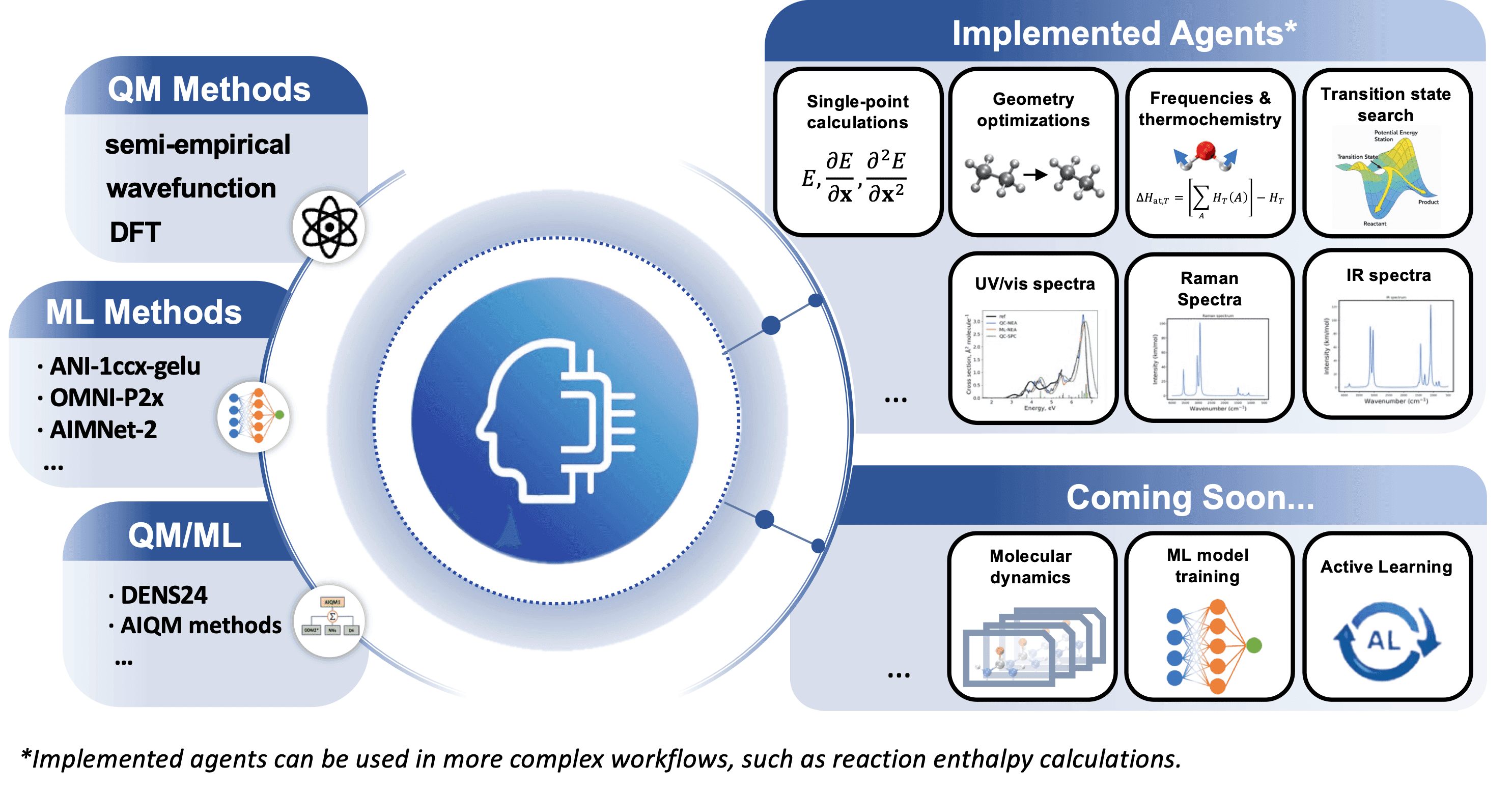
Protomia supports single-point calculations, geometry optimizations, frequency & thermochemistry, transition-state search, IRC and NEB paths, molecular dynamics, and UV/Vis, Raman and IR spectra. See Features for the full list, the available methods, and what runs where.
The approach was introduced in Aitomia, the open-source academic version, and described in its preprint.
Quick Access via Action Buttons
Protomia gives you quick access to these tasks via action buttons for selected XYZ structure files. Drop a structure file into the chat, choose a simulation type, and select your method — Protomia generates the prompt automatically.
Working Directory Selection
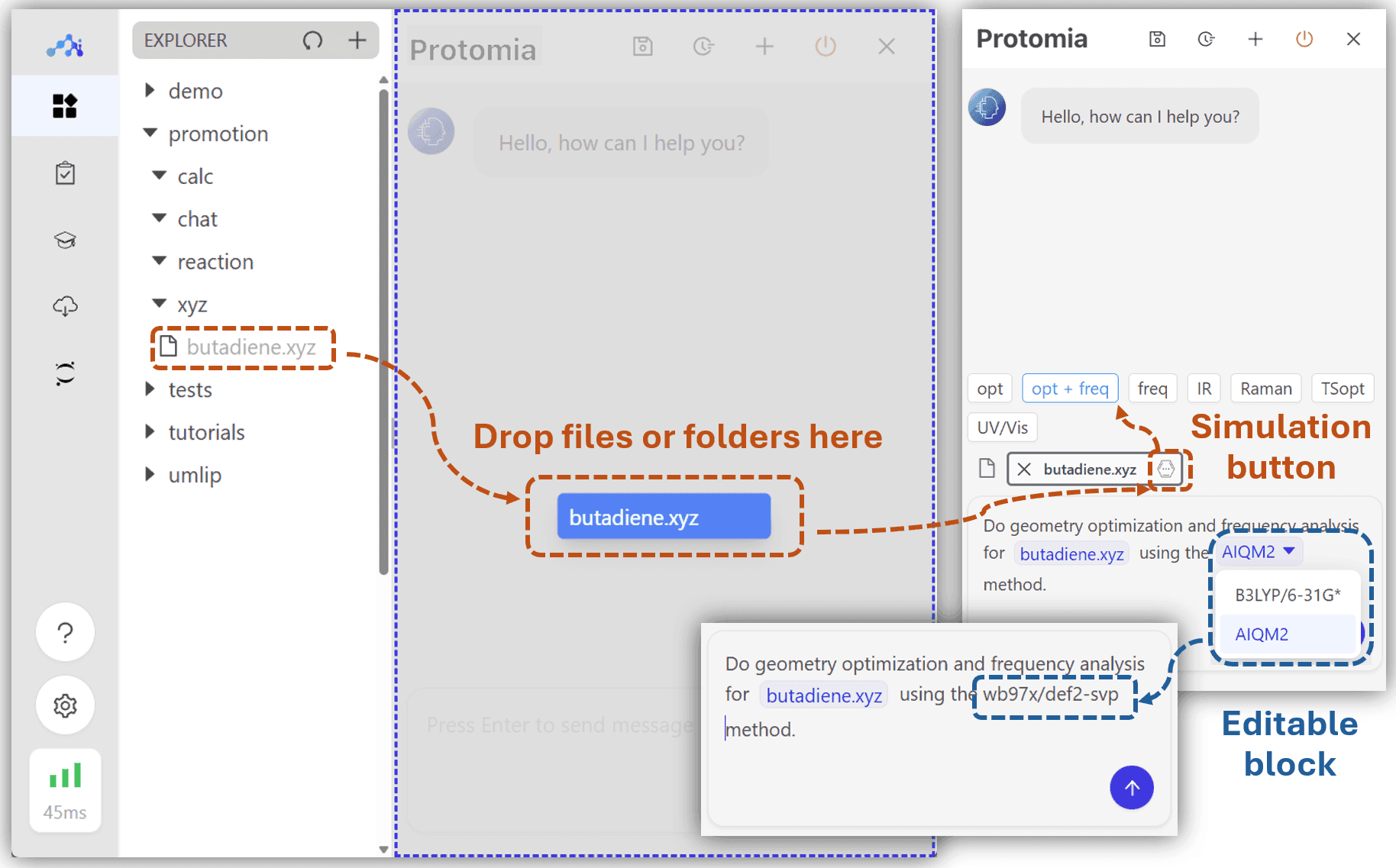
You can drop multiple folders into the chat and pick one as the working directory for your calculations. This keeps your inputs, outputs, and logs organized under a single project folder.
Analyzing Calculations and Files
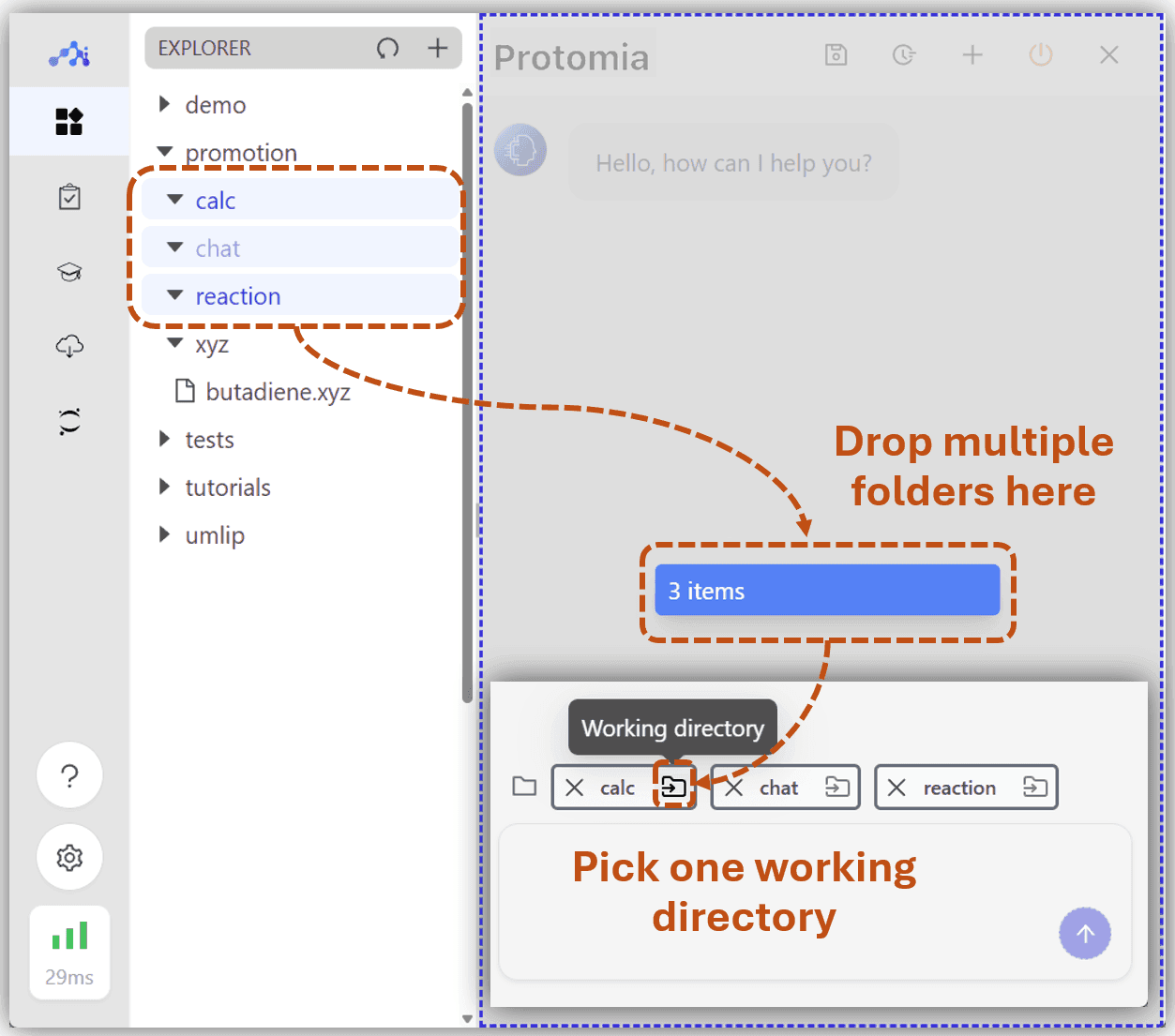
You can ask Protomia to analyze calculations, files, and folder contents. Drop a log file into the chat and ask for an analysis — Protomia will parse the output, summarize key results, and flag any issues.
Reaction Energy and Thermodynamics
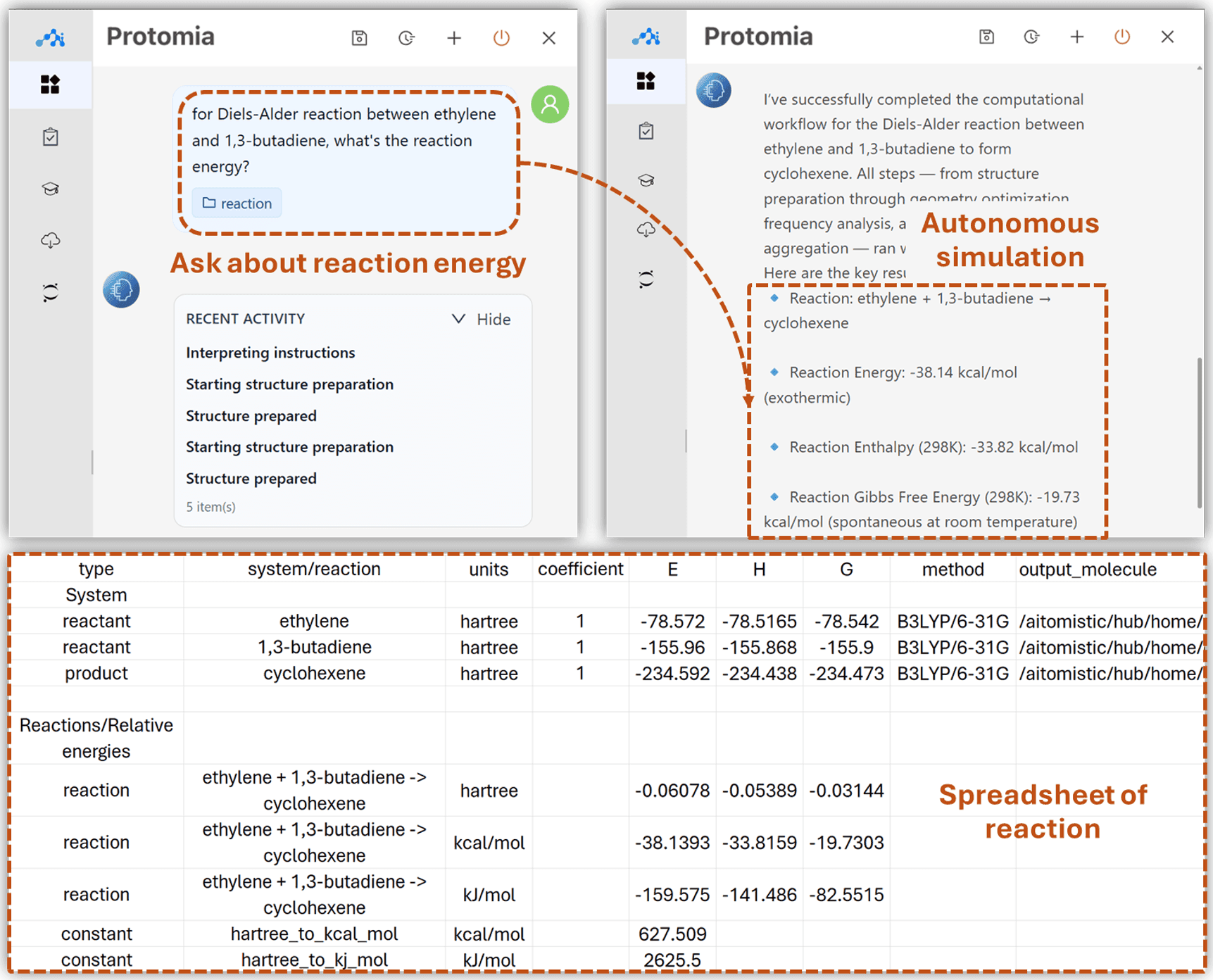
More complex workflows, such as reaction energy and thermodynamics, are also supported. Ask Protomia about a reaction by attaching the relevant folder — it will run all necessary calculations autonomously. A standout feature is that Protomia generates an Excel spreadsheet with extracted energies and reaction energies, giving you a ready-made starting point for further analysis and verification.
Method Knowledge and Q&A
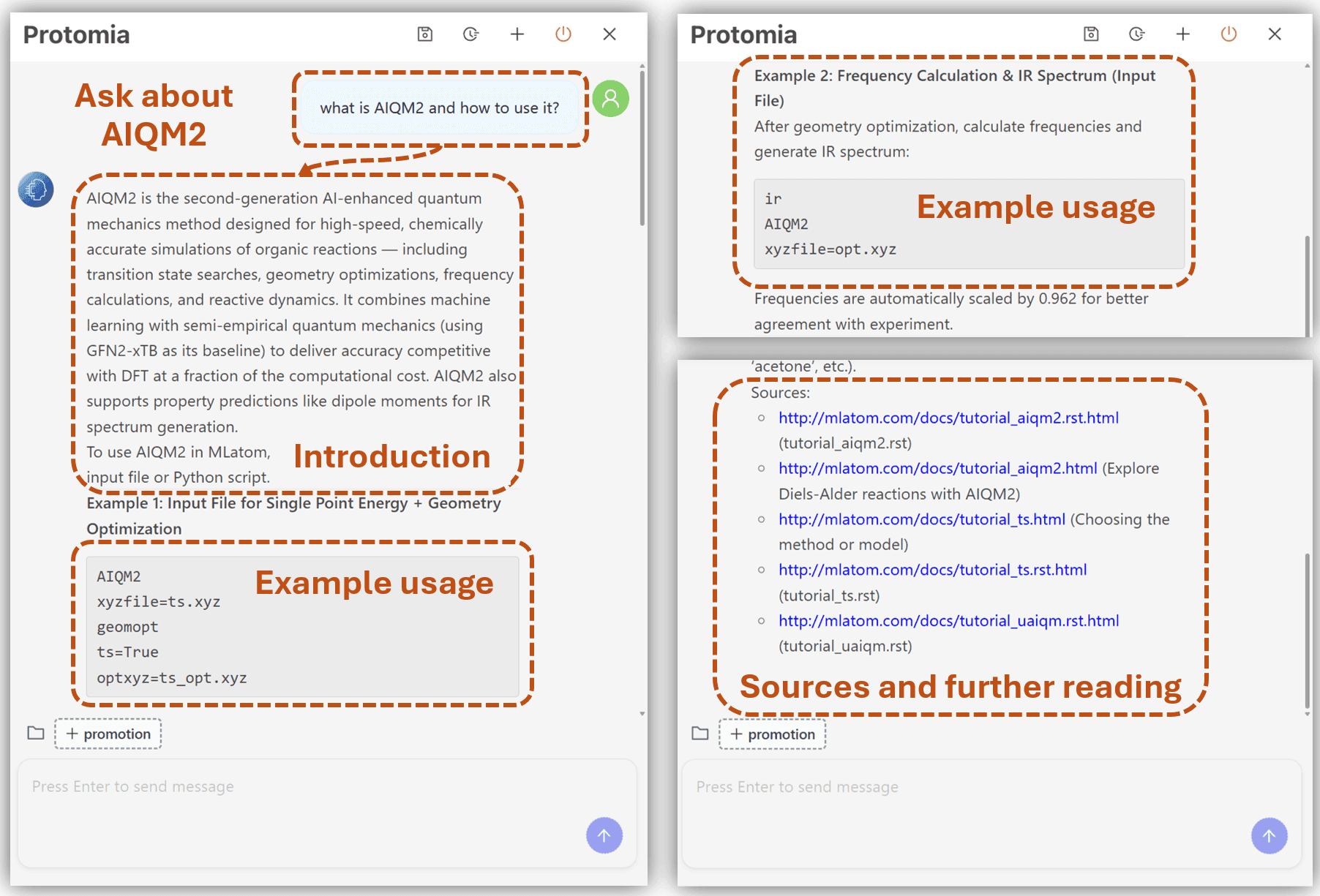
Protomia gives you easier access to the wealth of knowledge available for MLatom and its many features, such as AIQM methods and excited-state simulations. Instead of browsing tutorials, ask Protomia how to use a method or how to cite it. It provides working input examples and links to source materials so you can verify answers and explore further.
Chat History
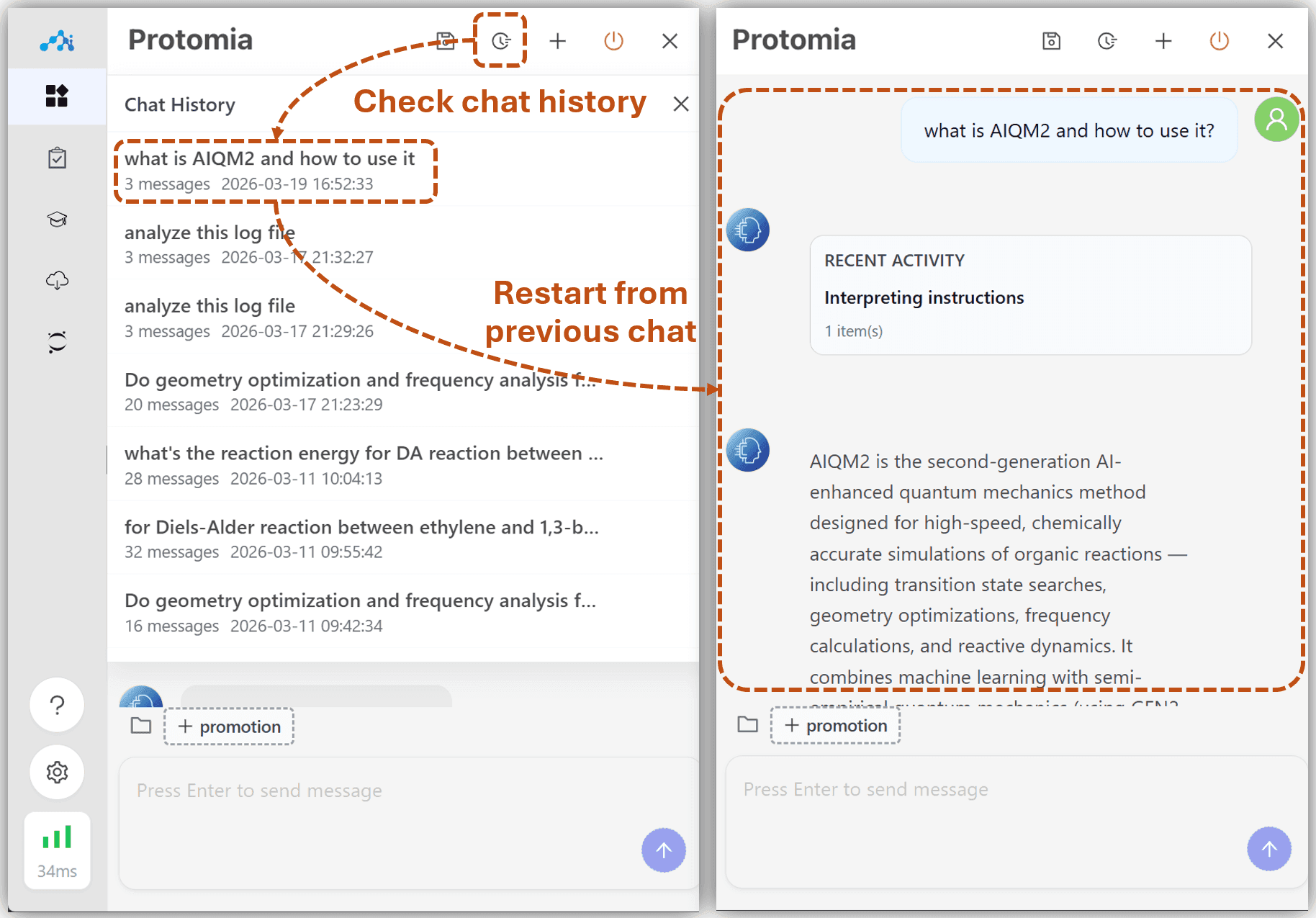
Protomia keeps a full chat history you can browse to revisit earlier calculations, review what you have done, and even restart workflows — picking up exactly where you left off.
Save Chats to Markdown
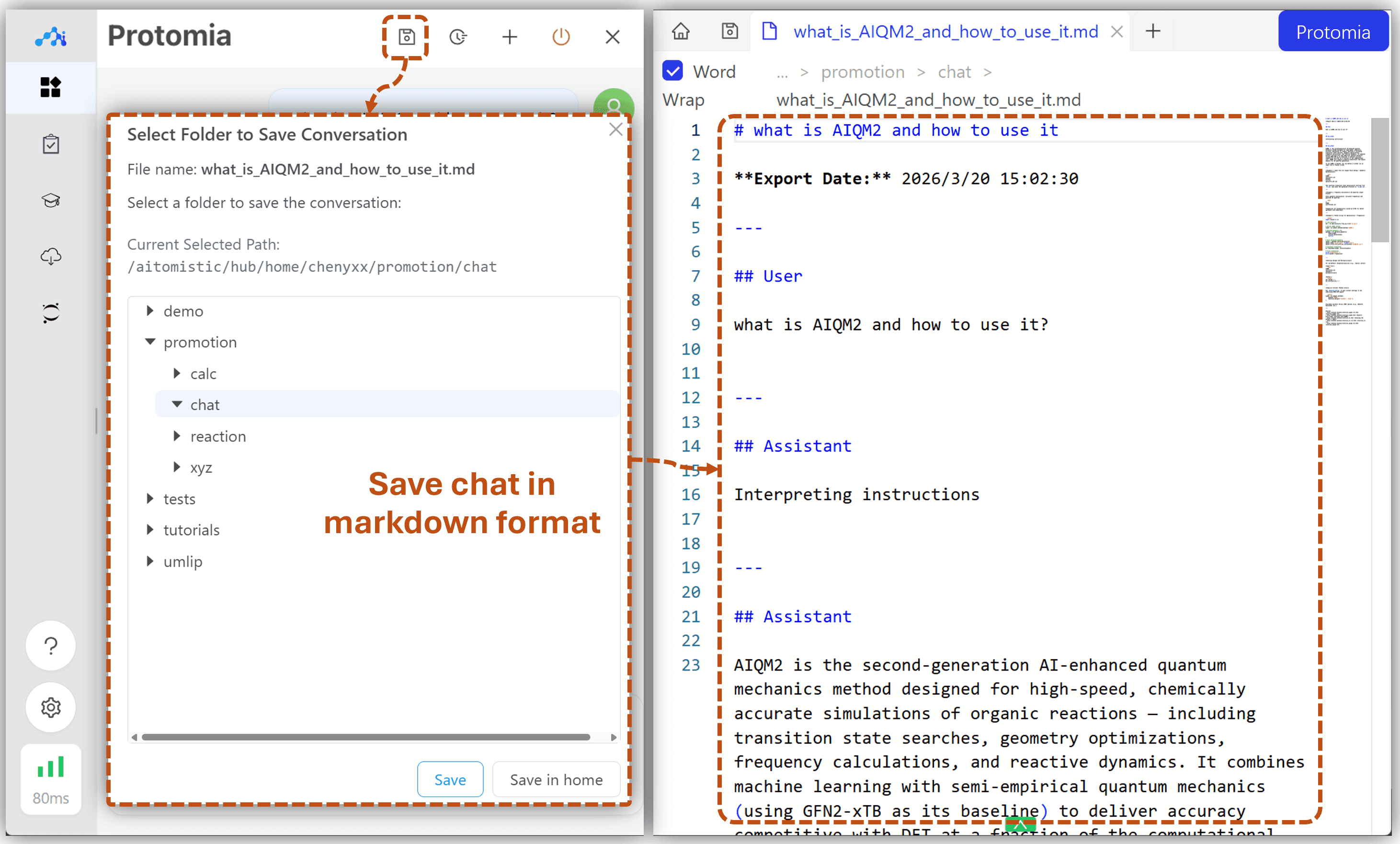
You can save any conversation to a Markdown file by clicking the save icon. Choose the destination folder in your project tree, and Protomia writes a structured .md file with the full exchange.
Figures on this page are © Aitomistic, licensed under CC BY 4.0 (full licence text).